Jira Incident Portal - Training Guide
1.Introduction to Jira
What is Jira Service Management?
Jira Service Management (JSM) is a widely used international service management platform developed by Atlassian, designed to help teams efficiently manage incident requests.
It provides an intuitive interface for both customers and support teams, offering tools for ticket tracking, automation, SLA management, and real-time collaboration. Torchbox already uses Jira Software to manage projects and track development work, providing a central hub for collaboration and visibility across teams. The next phase of our migration is to extend those capabilities by introducing Jira Service Management (JSM) for incident management.
Why are Torchbox doing this?
We're moving to Jira Service Management to create a more streamlined and transparent support experience. JSM will allow you to log incidents directly through a user-friendly portal, track progress in real-time, and manage all your requests in one central location with full visibility of your incident history.
For Torchbox, it means we can better monitor and report on key incident response SLAs like response times, helping us deliver more consistent service, and making it easier for both you and the Torchbox team to collaborate and communicate throughout the incident lifecycle.
Quick links
| Link | Summary |
|---|---|
|
Contact to support team for Jira Service Manager access or troubleshooting |
|
|
Raise an incident with Torchbox |
3. Getting started
Accessing Jira
- If you already use Jira for project work with Torchbox, you will already have an account so will be able to use your existing username and password
- For new users that will require access to create and view incidents, please contact [email protected] to request additional users
- Once your user access has been created, you will receive an automated email from Jira inviting you to set a password to access your account
- Note, if you’ve not received an invite email, navigate to the portal, enter your email address and click ‘Create password’. This will send a password reset link.
4. Reporting an Incident
- Navigate to https://torchbox.com/incident/ (from January 20th 2026)
- You will be shown the login screen to enter your Jira username and password
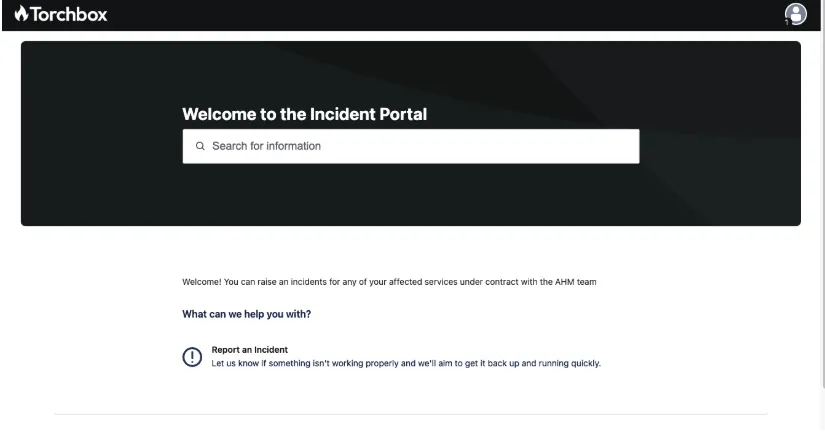
- Once logged in, you will be taken straight to the portal dashboard and shown the option to Report an Incident. Click this to be taken to the incident form.
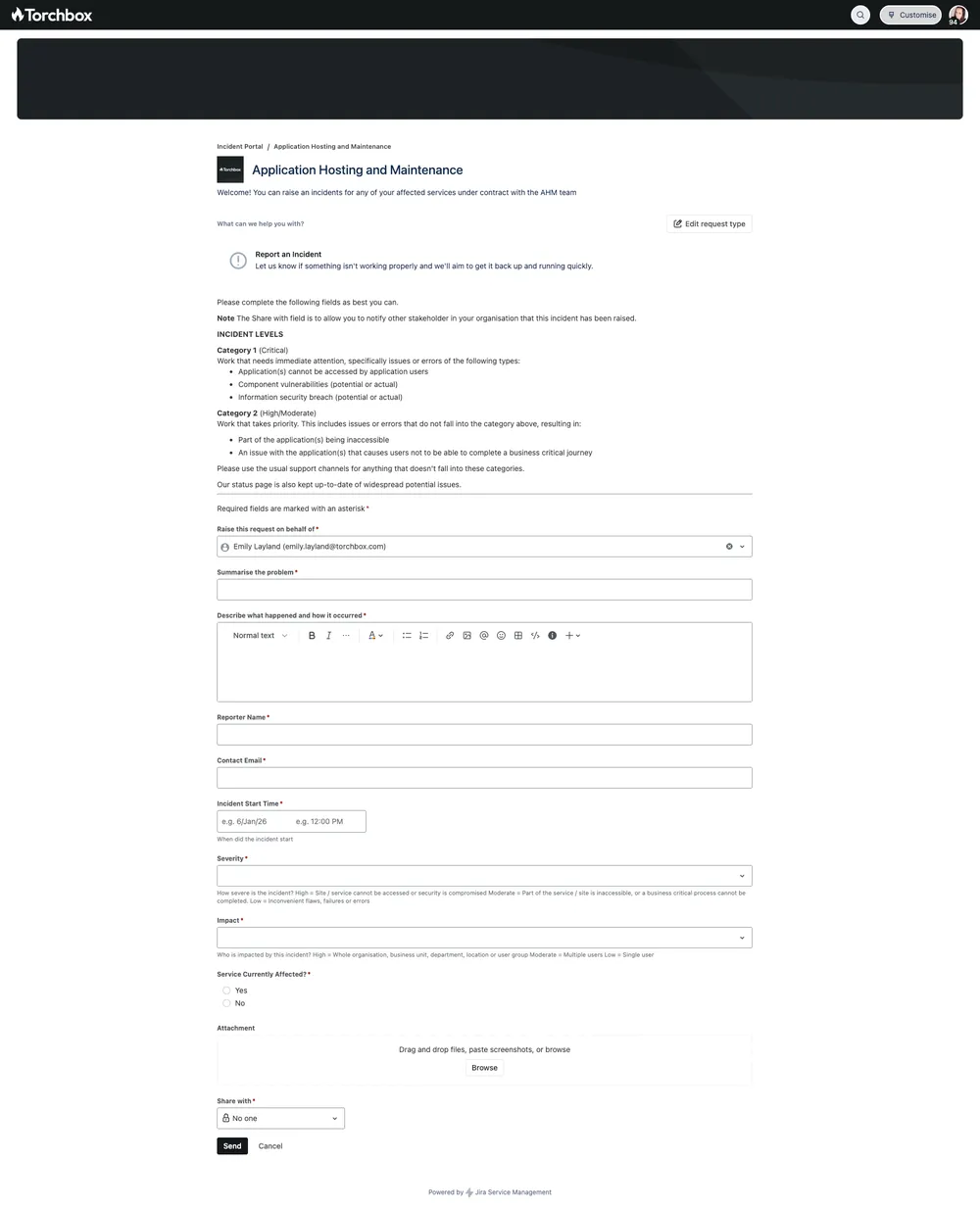
4. Here you will be shown the incident definitions and form fields to submit the details of the incident:
5. Once all required fields have been populated, select privacy option:
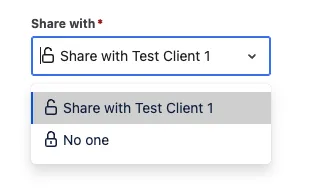
- Share with <Organisation Name> - all other users within your Organisation who have a Jira Service Manager log in will be notified of the incident and able to view and access the incident request
- No- one - only you and the Torchbox Support Team will be able to view the Incident.
Hit the ‘Send’ button to submit your incident.
5. Notifications & Communications
- Once you have submitted an incident, you will be taken to a screen showing your incident details:
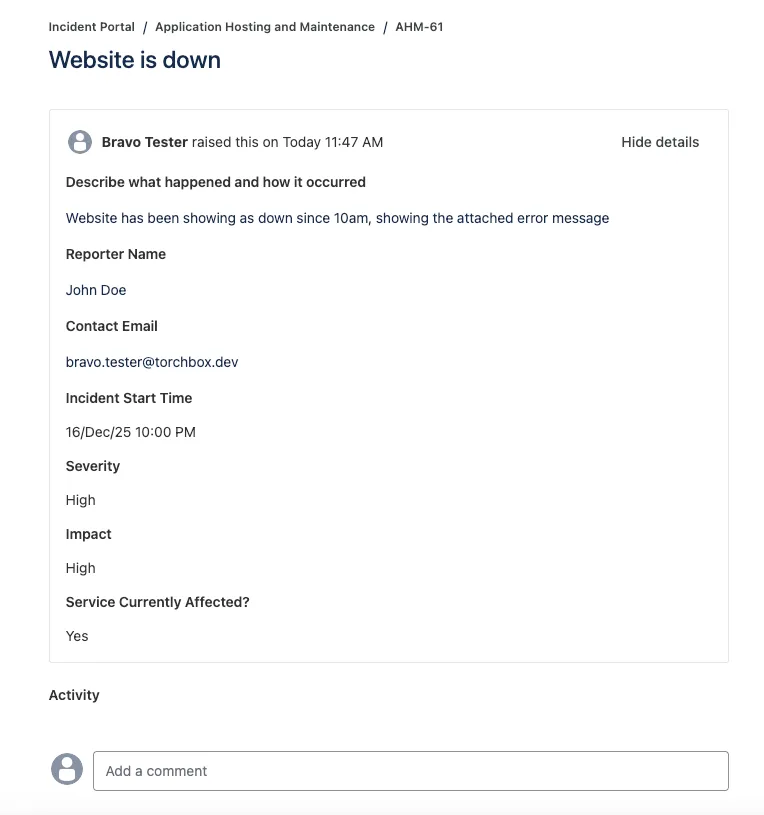
2. Everyone within your organisation will also receive a notification of the incident (if this privacy option has been selected in the previous step).
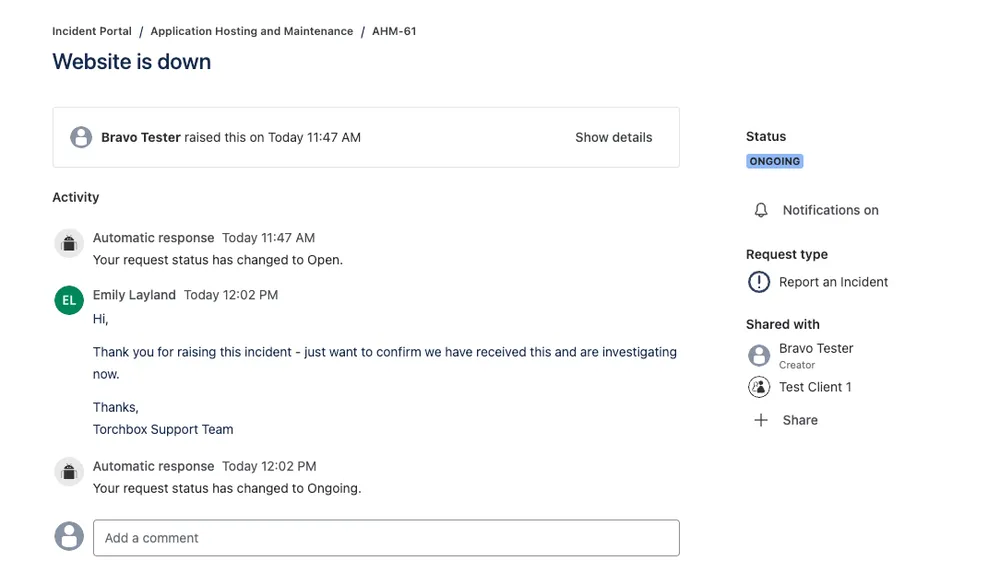
3. The Torchbox team will provide responses via the Jira Service Manager ticket, and you will also see any changes to the status of the incident request:
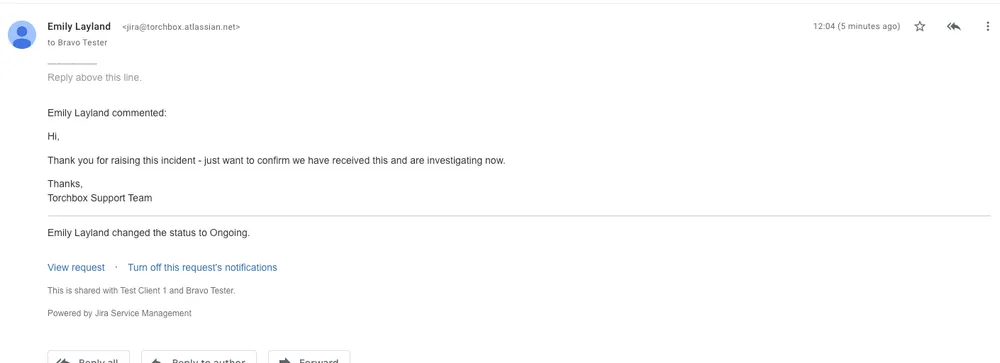
4. You will be notified via email when new comments are added to the incident
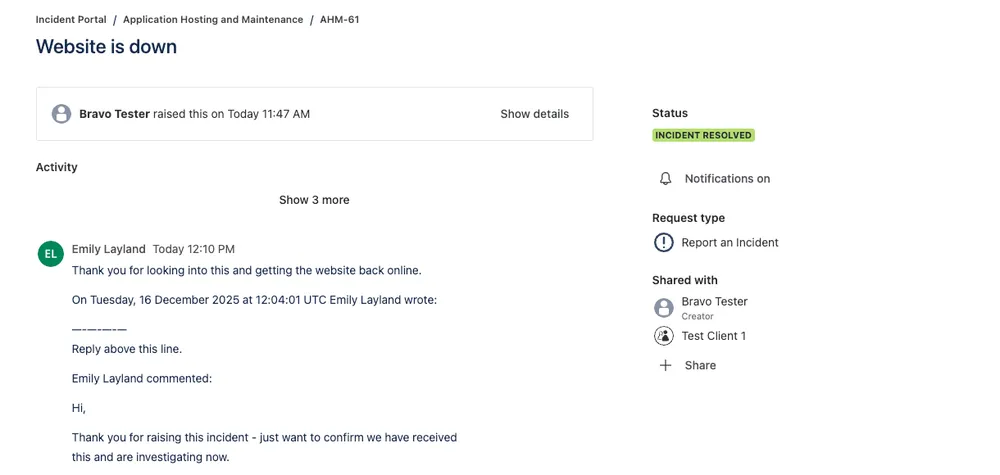
5. Responses and comments can be sent via the incident ticket itself , and by responding to the notification email, which will also leave a comment in the ticket
6. Once the incident has been resolved, the Torchbox team will transition the incident to the ‘Resolved’ status and leave a comment with further detail and an incident report if necessary.
Viewing Incident Requests
1. To view all current and historical incident requests within your Organisation, select your profile avatar from the top left corner, and Requests:
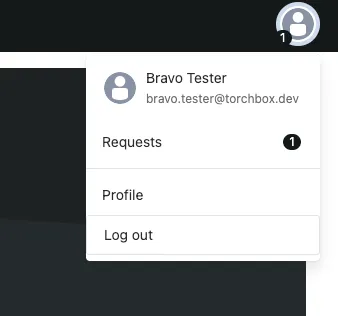
2. This will show all incident requests within your Organisation, with filtering options to allow you to show Open/Closed Incidents.
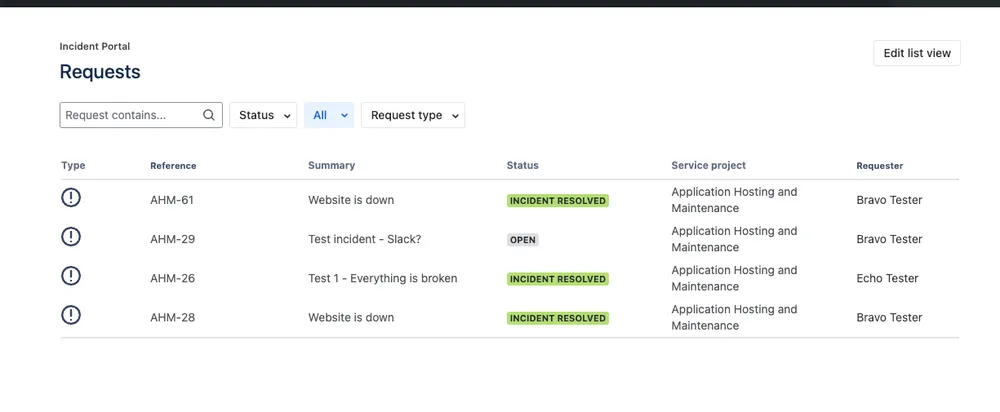
Note: this will only display incident requests raised within the new Jira portal. Any incidents raised via the old form and system, can be viewed either in your Jira project or issued to you as a download on request to [email protected].
6. Frequently Asked Questions (FAQ)
- Can I reply to incident request communications via email?
Yes. You’ll receive email notifications when there are updates to your incident request. Simply reply to the email and your response will be added to the incident request automatically. - How do I know when you need something from me?
If an incident request is marked ‘Waiting for Customer’, Torchbox are waiting for more information or confirmation from you before we can progress. You’ll also receive an email notification. - Can multiple people from my company access the same requests?
Yes. If organisation sharing is enabled. You can view incident requests raised by others in your organisation under Requests → All. - How do I add another user from my company?
Contact us via [email protected] and let us know the person’s name and email address and we will set them up. - Can I attach a file?
You can attach files such as screenshots, PDFs, and documents directly to requests. If a file is too large, let us know and we’ll provide an alternative upload method. - How can I access incidents or requests raised before the Jira portal migration?Incident requests raised before the launch of our Jira Service Management portal will not be visible in the portal.
However, this data has been retained within our internal systems for record-keeping and reporting purposes. - Can I access historical incidents from before the migration?
Yes. Information about incidents or requests raised prior to the portal migration have been retained and can be issued to you as a download on request to [email protected]. - Someone has left my Organisation and should no longer have access to our Jira service organisation, what should I do?
Please contact us at [email protected] with the name and email address of the user, and we will ensure their access is removed.